First call
Take an empty account to a recorded conversation you can play back and read. Most of the work is writing one prompt.
You will do it in two passes. The first pass never touches telephony — you test in the browser, where a cycle takes seconds. Attach a phone number only once the agent sounds right, because that is the step whose details depend on where your organization is.
An account with its region already chosen (get access covers that), and — for the last two steps — a phone number you can attach. No number yet? Stop after step 3. The browser test call is worth doing on its own.
Create a workflow
From an empty workspace, create a workflow. Blank Canvas starts from nothing, From Template starts from a written prompt for a common job, and Create with AI opens the same blank workflow with the AI builder alongside it.
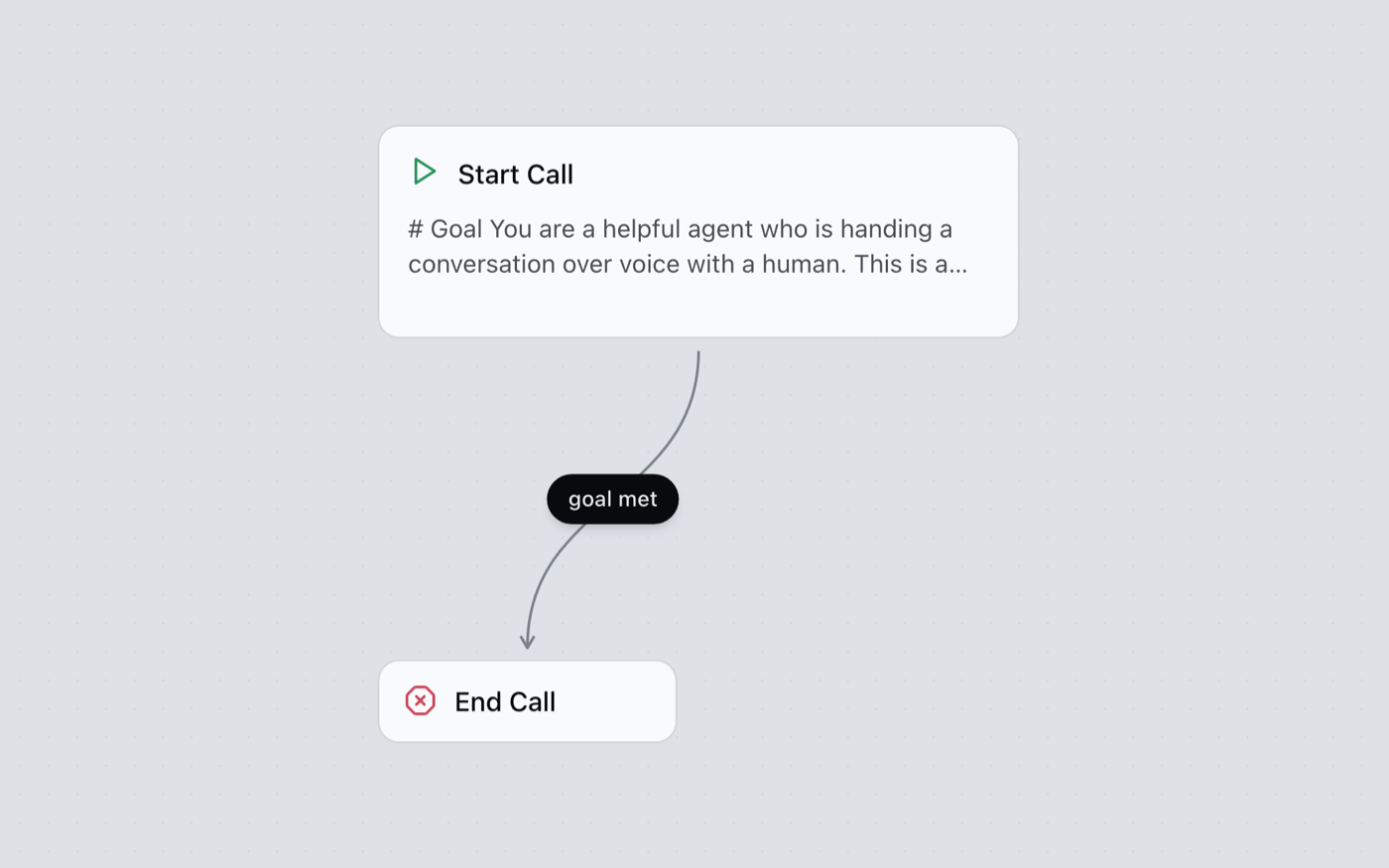
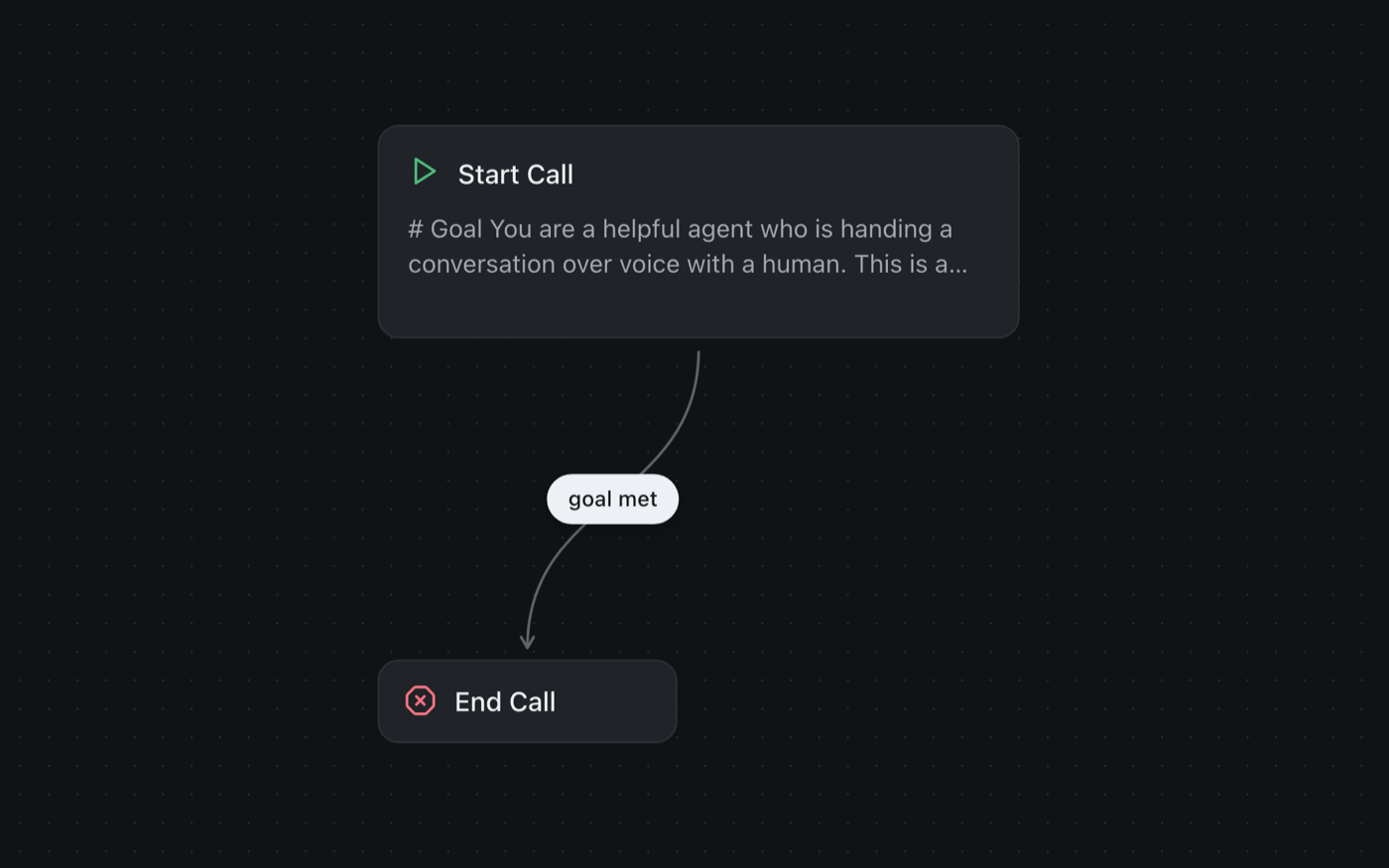
Whichever you pick, the workflow arrives with one node and no edges.
- Start Call is that node, and it is the single entry point. Every workflow has exactly one, it cannot be deleted, and you cannot add a second.
- Nodes are the steps you add around it — a thing to say, a question to ask, a system to call.
- Edges are the lines you draw between nodes. Each one is the rule that decides when the conversation moves on.
Add an End Call node from the node panel and drag an edge from Start Call to it. That is the shape of every workflow you will ever build: an entry point, some steps, an ending.
Name the workflow something you will recognise in a list of thirty. "Test 2" is a decision you regret in a fortnight.
Write the prompt
Open the Start Call node. Two fields matter on the first pass.
- Greeting — the literal first thing the caller hears. It is deliberately separate from the prompt, because the opening line is the one moment you want exact words rather than a model's interpretation of them.
- Prompt — everything else: what the agent is trying to accomplish at this step, and how it should behave while doing it. There is no separate personality setting anywhere in the product. Tone lives in the prompt, and so does judgment.
Keep the first prompt small. One clear objective, tested, then add the next as its own Agent Node.
Writing one enormous prompt that describes the whole call. It reads sensibly and it behaves badly. Several small nodes joined by edges give you a conversation whose shape you can see on the canvas — and, when a call goes wrong, one specific node to fix.
Test it in the browser
Save the workflow, then choose Test → Web Call. Woise creates a run and opens the run screen — a full page of its own, not a panel on the canvas. Microphone controls and the Start Call button sit on the left; the live transcript builds on the right as you speak.
This is not a simulation. It runs the same pipeline a phone call runs — the same speech recognition, the same model turn, the same speech synthesis, the same turn-taking — with the phone network swapped for your microphone and speakers.
Three things worth knowing about the Test menu:
- It stays disabled while you have unsaved changes or validation errors. Save first.
- Web Call runs your draft, so you are hearing the edit you just made rather than the published version.
- Phone Call places an outbound call to a number you type, and Text chat runs the same graph as typed messages.
Iterate here. Change a line of the prompt, save, call again, listen.
Attach a phone number
Once it sounds right in the browser, connect it to a real number. This step differs by region, because number sourcing is a compliance question before it is a technical one.
Connect a number from the Numbers page and choose this workflow to answer it. If you are unsure which option fits your account, contact us and we will help you set it up.
Once your organization has cleared identity verification, Woise provisions a managed +91 number on your behalf and attaches it to the workflow. The KYC step gates this, so start it early if you have not — see India.
Full detail on both paths lives in Numbers.
Place a real call and read the transcript
With a number attached, call it — or, for an outbound agent, have it call you.
Every call is a workflow run, and the distinction matters more than it sounds. The workflow is the definition; the run is one execution of it. Editing the workflow afterwards does not rewrite the runs that came before, which is what makes a transcript worth trusting as a record.
Each run carries four things:
| What | Where it comes from |
|---|---|
| Transcript | Both sides of the conversation, turn by turn |
| Recording | The call audio, stored once the call ends |
| Cost | Metered from the call's actual duration and services used |
| Extracted variables | Whatever your nodes were configured to collect |
The recording and transcript appear alongside the workflow's other runs once the call completes — Recordings covers where to find them and what they hold.
Next steps
You have a working agent with one step. Three useful directions from here:
| Goal | Guide |
|---|---|
| Give the agent more than one step | Nodes — the ten types and when each applies |
| Let it look things up or take action | Tools and Knowledge |
| Call a list of people rather than wait | Campaigns |
If something did not behave as described above, Concepts defines every term used here precisely.
Common questions
What is Woise?
Woise lets you build AI agents that answer and make phone calls and chat on your website. You lay out the conversation on a visual canvas, try it in your browser, then connect it to a phone number.
Do I need a phone number to start?
No. You can build and test an agent in the browser without one. When you are ready, connect a phone number and choose which agent answers it.
How does billing work?
You pay for the minutes your agents use, from your credit balance. There are no seat fees and no per-agent fees, so an agent that is not taking calls costs nothing.
Which languages can an agent speak?
Agents can listen and speak in more than 40 languages, including English, Spanish, Hindi, Tamil and Arabic. You pick the language and the voice for each agent.
Can an agent connect to my CRM or calendar?
Yes. An agent can look things up and make changes in 26 apps, such as Salesforce, HubSpot, Google Calendar, Slack and WhatsApp, while the caller is still on the line. You connect each app once.
Do I need engineers to build an agent?
No. Everything is built in a visual editor, so you can create and change an agent without writing code. If your team prefers code, there is also a REST API and an MCP server.
What happens to call recordings and transcripts?
Every call keeps a transcript and its outcome, and audio is only recorded if you turn it on. Only people in your account can see your calls, and your account lives in the region you chose when you signed up.
What do I have to set up or run?
None. We run the speech, the language models, the recordings and the phone connections, and scale them with your call volume. There is nothing for you to set up or keep running.
How do I reach the team?
Email contact@woise.ai, call or WhatsApp +91 83412 34080, or use the form on our contact page. A person reads every message.
Still stuck? Talk to our team.